

Exchange 2013 Configuration (mac)
Hosted Exchange with Mac Mail
PLEASE NOTE: Mac Mail only allows mailboxes up to 2gb in size
https://discussions.apple.com/thread/2555948?threadID=2555948
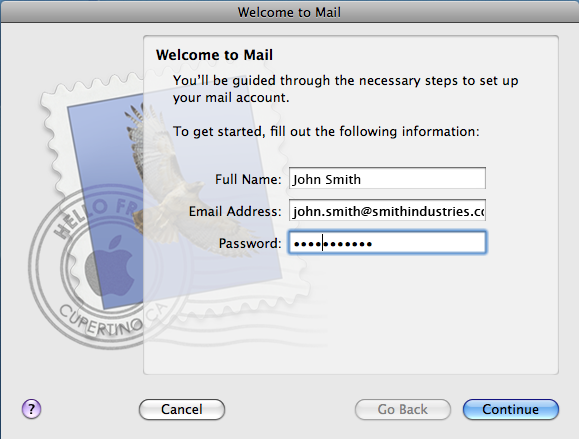
When Opening Mac Mail for the first time you will be greeted by the below screen. Here you will need to input your personal details:
Full Name: The Name you wish to have displayed on Emails
Email Address: The Users Email Address
Password: The Users Email Password
2. Click 'Continue'
3. Next you need to enter the Incoming Mail Server details:
Account Type: Exchange
Description: A Description of the Mailboxes Usage
Incoming Mail Server: cas.cloudplatform1.com
User Name: The User's Email Address
Password: The Users Email Address Password
Outlook Web Access Server: owa.cloudplatform1.com
4. Click 'Continue'
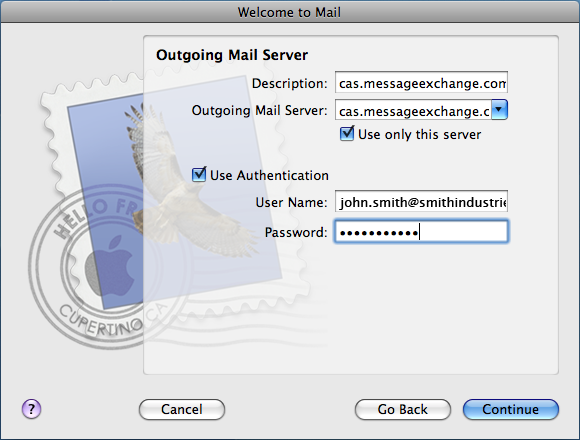
5. Next you need to enter the Outgoing Mail Server details:
Description: cas.cloudplatform1.com
Outgoing Mail Server: cas.cloudplatform1.com
Use only this server: Ticked
Use Authentication: Ticked
User Name: The User's Email Address
Password: The Users Email Address Password
6. Click 'Continue'
7. You will now see the Account Summary page. Here you can double check your information and then 'Create' the account

**Mac Mail only provides basic Exchange Support and will not provide full functionality for the Hosted Exchange Environment as it cannot synchronise; Calendars, Contacts, Tasks or Rules.
While we can support the software a lot of the fundamental content of Hosted Exchange is not accessible via Mac Mail and as such we would always advise the use of Microsoft Outlook 2011 for Mac in the first instance**
