iOS (Exchange 2013)
Follow these steps to setup your Exchange ActiveSync account your iOS device:
1. Tap Settings > Mail, Contacts, Calendars > Add Account > Exchange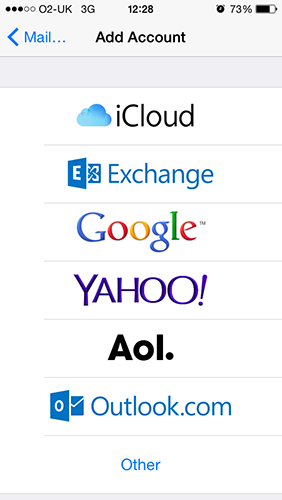
2. Enter the information in the fields below, then hit 'Next'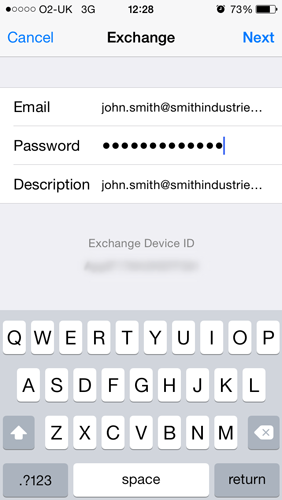
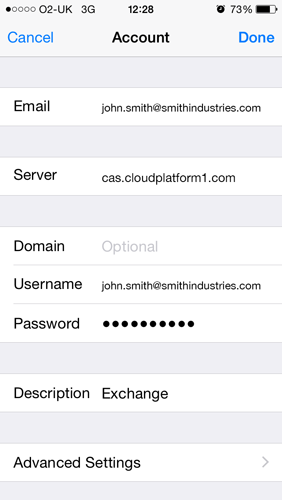
3. Your iOS device will now try to locate your Exchange Server. If necessary, you will need to enter your front-end Exchange Server's complete address in the 'Server' field which is cas.cloudplatform1.com
4. Upon completion you will be given the option to choose which types of data to sync with your Exchange account. 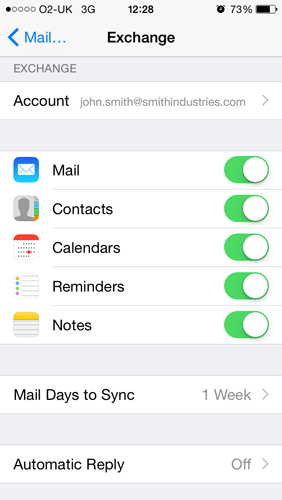
Note: To modify your exchange settings, Tap 'Settings' > 'Mail', 'Contacts', 'Calendars', select your Exchange account, and tap 'Account Info'